Buttons, actions, approvals and totals
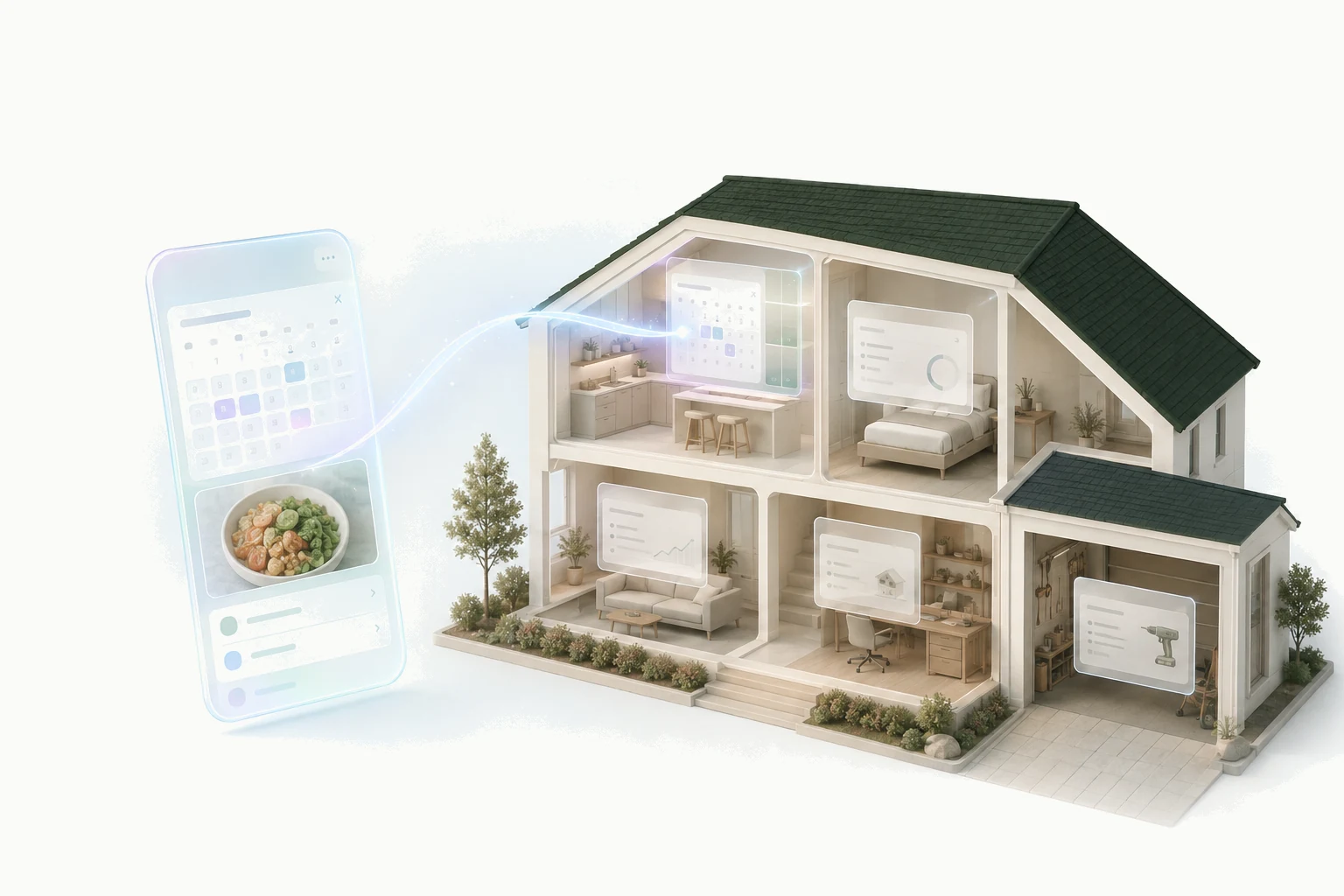
A control on a Kaddy screen can save, change or delete one record, run one of the app's named actions, open a conversation with the assistant, or change what the screen is showing, and nothing else. That short list is what makes a screen safe to trust, and it is also enough for a checklist, a tracker or a planner. This page explains each one, why a press sometimes waits for your approval, and why a number on a screen is either complete or blank.
Saving, changing and deleting a record
The simplest binding writes one record on one table: a form's button saves a new record, a checkbox in a habit's row marks it done for today, a delete button removes an entry. The screen names the table and the values; the record's identity comes from the card the control sits in, so a checkbox beside the third habit changes the third habit.
Every write is checked against the app's tables before it happens. A column the app does not have, or a value of the wrong kind, is refused rather than stored, and the same check applies whether the change came from a screen, from the assistant, or from you in the Data view. After a write, every list showing that table refreshes.
A control can ask first. A binding may carry a confirmation with its own title and message, and for something that cannot be undone the confirm button is red. Prefer that to a delete that simply happens.
Named actions: one operation, several changes
Some changes are more than one write. Marking a plan as ordered might set its status, stamp the date, and add a note to another table, and it should only happen if the plan has a supplier. An app declares that as a named action: one operation with typed inputs, a check that must pass, and the steps to take. The steps happen together or not at all, so a record is never left half-changed.
The same action is available to a screen button and to the assistant in Chat, and behaves identically from both. Every run is recorded with who asked for it, and a retried request is recognised rather than run twice. This is what to ask the builder for whenever a change has a rule attached: "only if", "and also", "never twice".
Why a press can wait for your approval
An action can be marked as needing approval. It exists for the changes that should never happen unattended: placing an order, sending something, closing an account. When such an action is requested, it does not run. It parks as a proposal in Chat, with the reason the requester gave, and you choose Approve or Dismiss.
Who is asking decides whether it parks. Your own press in a custom-code screen you built runs at once, because your press is the approval. Everything else parks: the assistant acting on its own, an outside tool connected to your kaddy, and any control on a saved screen. That last one can surprise people, so here is the reason. A saved screen's wording is authored as part of the app rather than by Kaddy's consent interface. A button labelled Refresh could be bound to an action that empties a list. So a saved screen's press is a request, whatever the label, and the proposal card in Chat is where you see what was really asked.
Approve runs the action's steps and refreshes the screen's lists. Dismiss changes nothing, and the screen may ask again later. A checkbox bound to such an action therefore behaves as a momentary request rather than a state: it clears itself once the request is parked, so unticking it cannot submit a second request. Saying "yes" aloud in a voice call does not approve a parked proposal either; approval is the card.
A button that starts a conversation
A control can open the app's own assistant, in Chat or as a live Voice call, and can hand it a starting message: a daily reflection app's one button is "Start today's reflection", and pressing it begins the call with that prompt. This is not an approval-gated action, and the difference is intentional: it does not change any record. It opens the conversation immediately, through the same checks every conversation goes through. Voice asks the browser for the microphone, which is your consent to a call; a call needs remaining allowance on your plan; and only one call runs at a time.
The binding works only from a real press. A screen cannot start a conversation while it loads, on a timer, or as the follow-up to another action, so a saved screen cannot quietly spend your allowance.
Changing what the screen shows
Tabs, filters, a dialog that is open, the text in a search field: these are screen state, and a control can set, add to or clear them. The screen keeps that state while it is open and starts fresh when it is reloaded; it is not a record, and nothing about it is saved. If something should survive a reload, it belongs in a table.
Totals, counts, percentages and streaks
A screen can compute five kinds of number from a list of records: a sum of one column, a count of records, a count of records matching a value, a percentage of one number against another, and a streak of consecutive days ending today on which a record exists. Those five are the whole set, which is what lets you read a screen and know exactly what it is adding up.
A number is shown complete or not at all. A named list can be capped, and a capped list that had more records is reported as cut short; a total over it would be plausibly wrong, so the screen shows nothing there until the list is whole. The same happens while a list is still loading or failed to load. If a Metric is blank, that is what it means, and asking the builder to narrow the list with a date range is usually the fix.